 OfflineContent
Home / OC Delay / How to multistream from OBS
How to multistream from OBS to Twitch, YouTube, Kick and TikTok
OBS sends one stream to one server. To be on several platforms at once you need something that copies it: an OBS plugin with extra outputs, a cloud service, or a relay on your own PC. OC Delay is a free relay for Windows. OBS sends to it once, it sends to Twitch, YouTube, Kick, TikTok LIVE and YouTube Shorts, without encoding anything again. One stream delay covers every platform, each platform has its own Start and Stop, and you can record from the same dashboard.
Three ways to multistream from OBS
| OBS plugin (extra outputs) | Cloud service | Relay on your PC (OC Delay) | |
|---|---|---|---|
| Where the copies come from | OBS, one output per platform | Their server | Your PC |
| Your upload | One stream per platform | One stream | One stream per platform |
| Extra encoding on your PC | Only if an output gets its own encoder | None | None |
| Your stream keys | In OBS | Saved with the service | On your PC, encrypted |
| One delay for all platforms | No, OBS's delay is set before you go live | Depends on the service | Yes, on and off while live |
A cloud service is the one to pick if your upload is small, because you only send one stream. The catch is that your stream and your keys go through someone else's server. If you have the upload (most fibre lines do), doing it on your own PC keeps everything with you.
Upload adds up. Every platform gets a full stream, so Twitch, YouTube and Kick at 8 Mb/s each is 24 Mb/s going up the whole stream. Run a speed test, and keep a good margin: a line that tests at 30 Mb/s up will struggle with 24.
Set it up with OC Delay
- Download and start OC Delay. Get it from the OC Delay page and run it. Windows will probably say "Windows protected your PC" the first time, because we haven't paid for a signing certificate: click More info, then Run anyway. The dashboard opens. Pick the platform you stream to most, usually Twitch.
- Point OBS at OC Delay. In OBS, Settings, Stream. On Twitch, keep the Twitch
service, tick Use custom server and paste
rtmp://127.0.0.1/main. You stay logged in and your stream key stays the same. If your main platform is YouTube, Kick or another, pick service Custom and paste the server the dashboard shows. - Add the other platforms. In the dashboard, Add destination: YouTube, YouTube Shorts, Kick, TikTok, or Other for any RTMP server. OBS only sends one stream key, and that one goes to your first platform. Every other platform needs its own key, pasted in OC Delay, where it's saved encrypted on your PC.
- Go live in OBS. Every destination set to start with OBS goes out as soon as OBS connects. The others wait for their Start button.
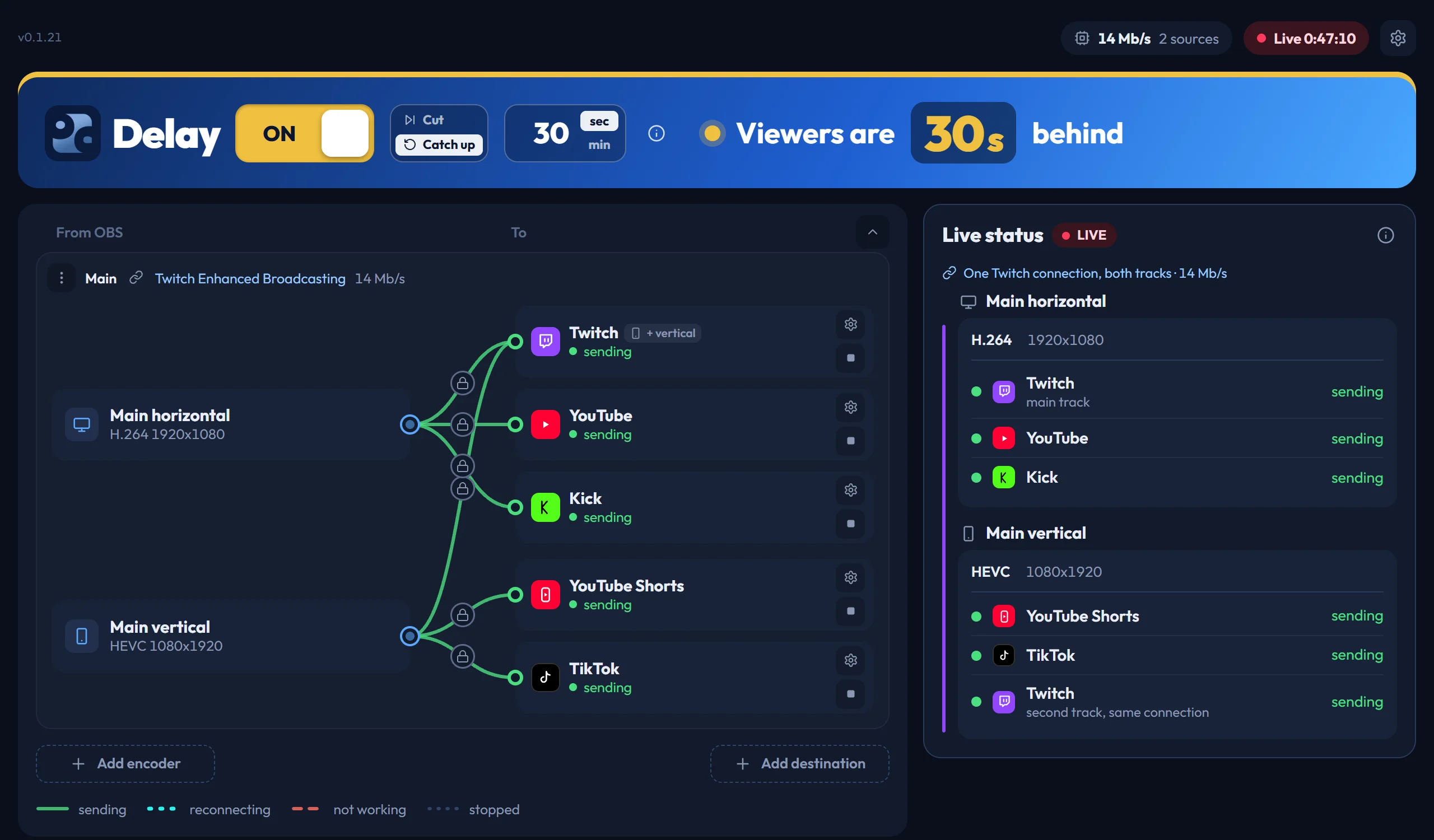
TikTok LIVE: TikTok gives you a new server and stream key every time you go live (if your account gets a key at all, not every account does). So TikTok is a manual destination: open TikTok's LIVE screen, copy the server and key into OC Delay, press Start. Twitch and the rest keep running while you do it.
Kick: Kick only takes H.264. If your OBS sends HEVC or AV1, OC Delay tells you on the Kick row instead of letting it fail quietly.
One delay for every platform
This is the part we built OC Delay for. OBS has a stream delay, but you set it before you go live and can't change it until you stop. In OC Delay you flip the Delay switch while live, and every platform falls behind by the same number of seconds, from 5 seconds to 10 minutes. That matters when you multistream: a delay on Twitch is useless if someone can open your Kick stream and watch you live.
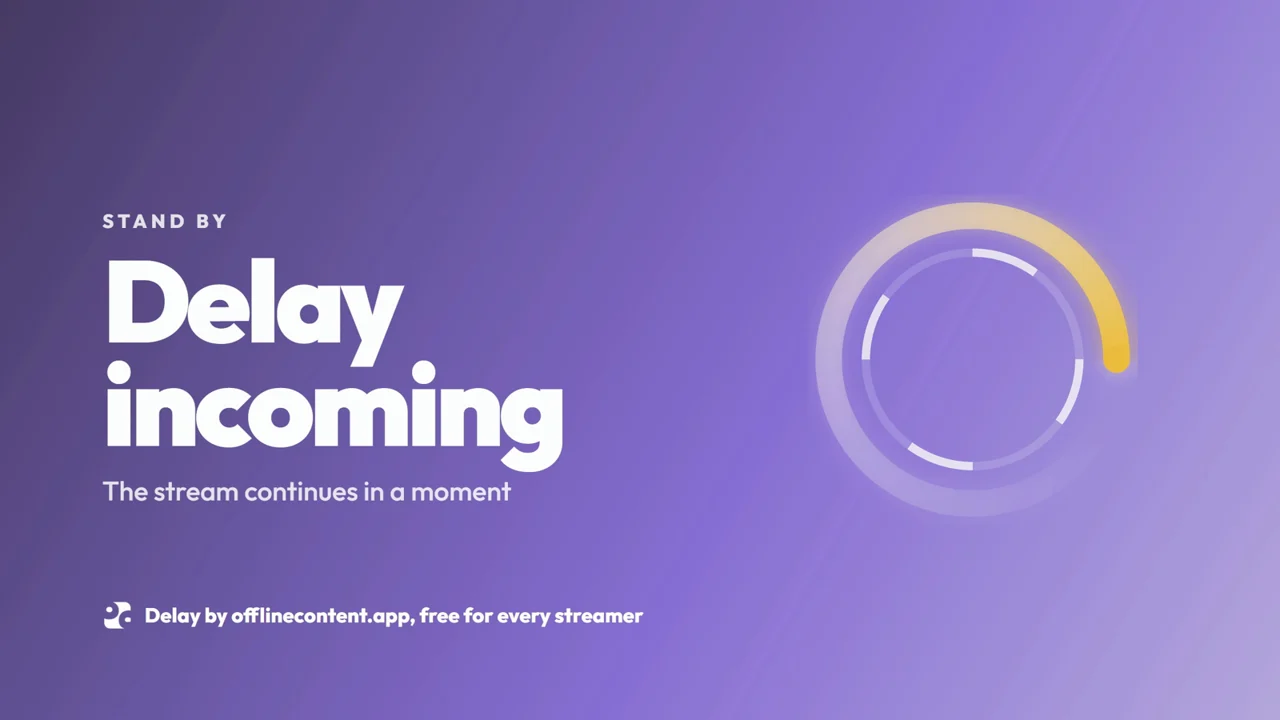
While the delay builds, viewers on every platform see the OC Delay delay screen instead of a frozen frame. When you turn it off, pick Catch up (viewers see the rest of what they missed, then jump to live) or Cut (straight to live). You can flip it from the dashboard, a dock inside OBS, or a Stream Deck button.
Start and stop each platform on its own
Every destination has its own Start and Stop, also while you're live. Stop Kick for a sponsored segment that's Twitch only, start TikTok an hour in when you're ready for it, or restart YouTube if it dropped, and the others don't notice. If a platform refuses the connection, that row says so and the rest keep going. That's the rule for the whole app: if one part fails, it falls back to plain pass-through and you stay live.
Recording in the same place
Add a destination called Record to file and OC Delay writes the stream to your PC while it sends it. MP4 (written so a crash doesn't ruin the file) or MKV. Tick Include the delay to record what viewers saw, or leave it off to record exactly what OBS sent. It saves what OBS sends, with no extra encode.
To be honest about it: it's not better than recording in OBS. OBS can record a different quality from your stream, OC Delay records the stream itself. It's there so the stream, the platforms and the recording sit in one dashboard.
One OBS, every platform, one delay.Free for Windows, set up in a few minutes.
Get OC DelayTwitch's rules for multistreaming
Twitch allows simulcasting for everyone, unless you have a deal with Twitch that says otherwise. Its Simulcast Guidelines come down to three rules:
- Twitch can't get the worse stream. The quality on Twitch has to be at least as good as on the other platforms, and that includes how you talk with Twitch chat.
- Don't send Twitch viewers elsewhere. Links to your other channels in your About section and panels are fine. Banners, titles, chat commands or QR codes telling viewers to watch you live somewhere else are not.
- No merged chat on your Twitch stream. You can't show a combined chat from other platforms on the Twitch stream. A merged chat that only you look at is fine.
Sources: Twitch Terms of Service, section 11 Simulcasting (last modified 12 August 2026), and Simulcasting Guidelines FAQ, both checked 22 November 2026.
If you use Twitch Enhanced Broadcasting (1440p or a vertical stream for phones), there's a way to reuse Twitch's vertical for TikTok and Shorts without a second encoder: Enhanced Broadcasting and vertical to TikTok.
Questions
Can OBS multistream on its own?
Not out of the box. OBS sends one stream to one server. You need a plugin that adds more outputs, a cloud service that copies your stream, or a local tool like OC Delay that copies it on your own PC.
Does multistreaming slow down my PC?
Not with OC Delay. It copies the stream OBS already encoded, so each extra platform costs upload, not CPU or GPU. An OBS plugin that gives each platform its own encoder does cost GPU.
Can I use different quality on each platform?
OC Delay sends the same stream everywhere, because it never encodes again. If you want a different quality for one platform, add another output in OBS (for example with Aitum Multistream), point it at OC Delay with its own name, and send that one to the platform. The delay still covers both.
Does it work with Streamlabs or Mac?
No. OC Delay is Windows and OBS only for now.
Is it really free?
Yes. It's made by OfflineContent, which turns your streams into shorts. OC Delay is free and stays free, there's no paid version.
Go live everywhere from one OBS.
OC Delay is free and runs on your PC. Your stream and your keys stay there.